Windows Desktop App
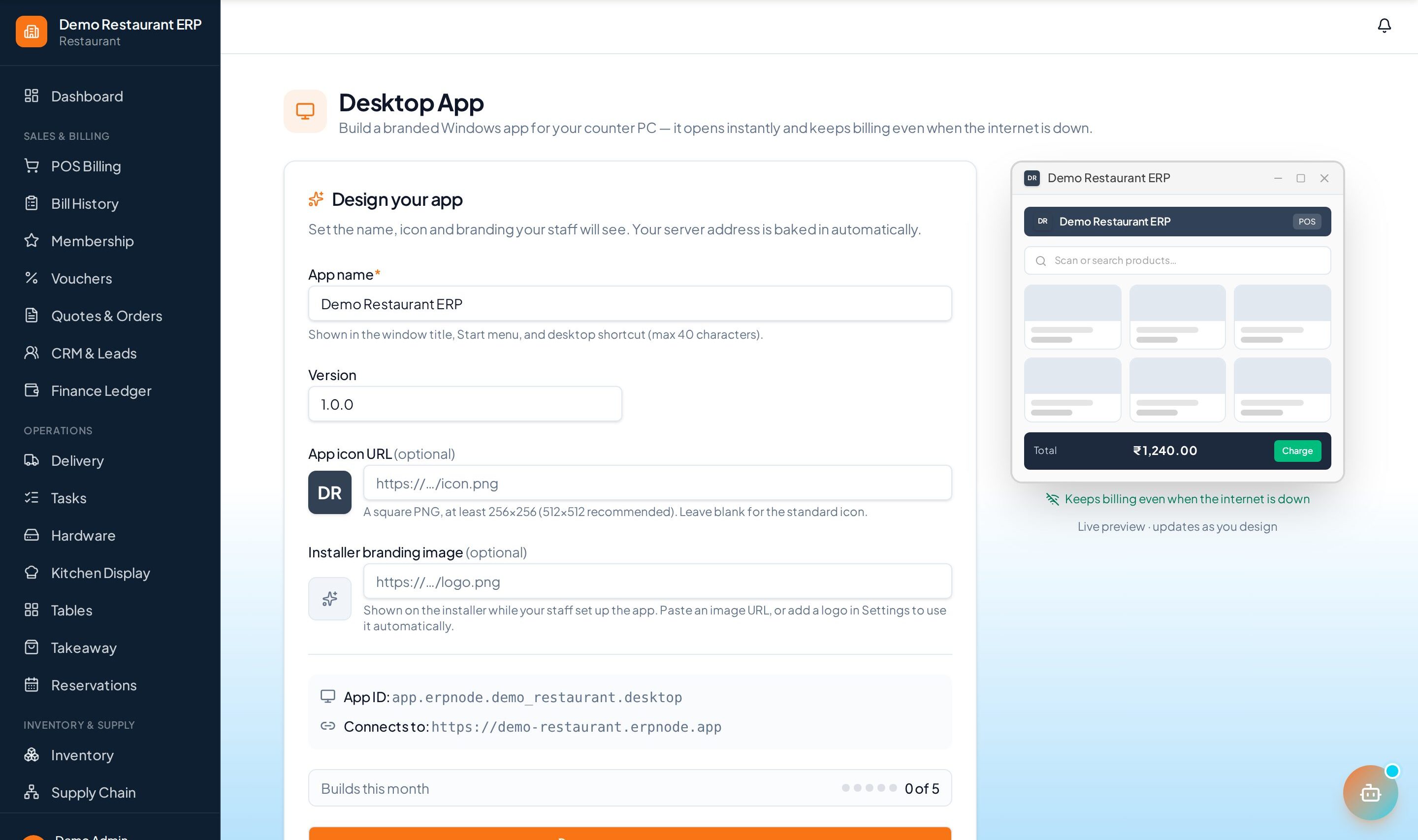
Build a branded Windows app (.exe installer) for your counter PC — it opens from a desktop shortcut and keeps billing even when the internet is down.
How to enable it
- 1
Log in as an Admin and open Addons from the sidebar.
- 2
Enable Windows Desktop App (premium) under Core & Common.
- 3
Open Desktop App from the sidebar.
Step by step
- 1
Configure
Set your app name, version, icon and installer branding — your favicon and logo from Settings are used automatically.
- 2
Build
ERP Node packages a Windows installer with your branding, terms of use, and server address baked in.
- 3
Install
Run the .exe on your counter PCs — staff see your branding, click I Agree on the terms, and it installs per-user with no admin rights.
See it in the app
Want the full feature list?
See everything Windows Desktop App can do and what's included.
More Core & Common guides
POS Billing
The billing counter at the heart of ERP Node. Ring up items, apply GST automatically, take split payments, and print or share the receipt in seconds.
HRMS & Payroll
Manage your whole team — employee records, attendance and leave, then run payroll with auto-generated payslips.
Inventory
Real-time stock across every outlet. Track on-hand quantity, raise purchase orders, and get low-stock alerts before you run out.