Swiggy/Zomato Sync
Sync your menu and prices to Swiggy and Zomato through relay middleware, and pull their orders into the same POS and kitchen flow as everything else.
How to enable it
- 1
Log in as an Admin and open Addons from the sidebar.
- 2
Under For Your Business (Restaurant), enable Swiggy/Zomato Sync (a premium addon).
- 3
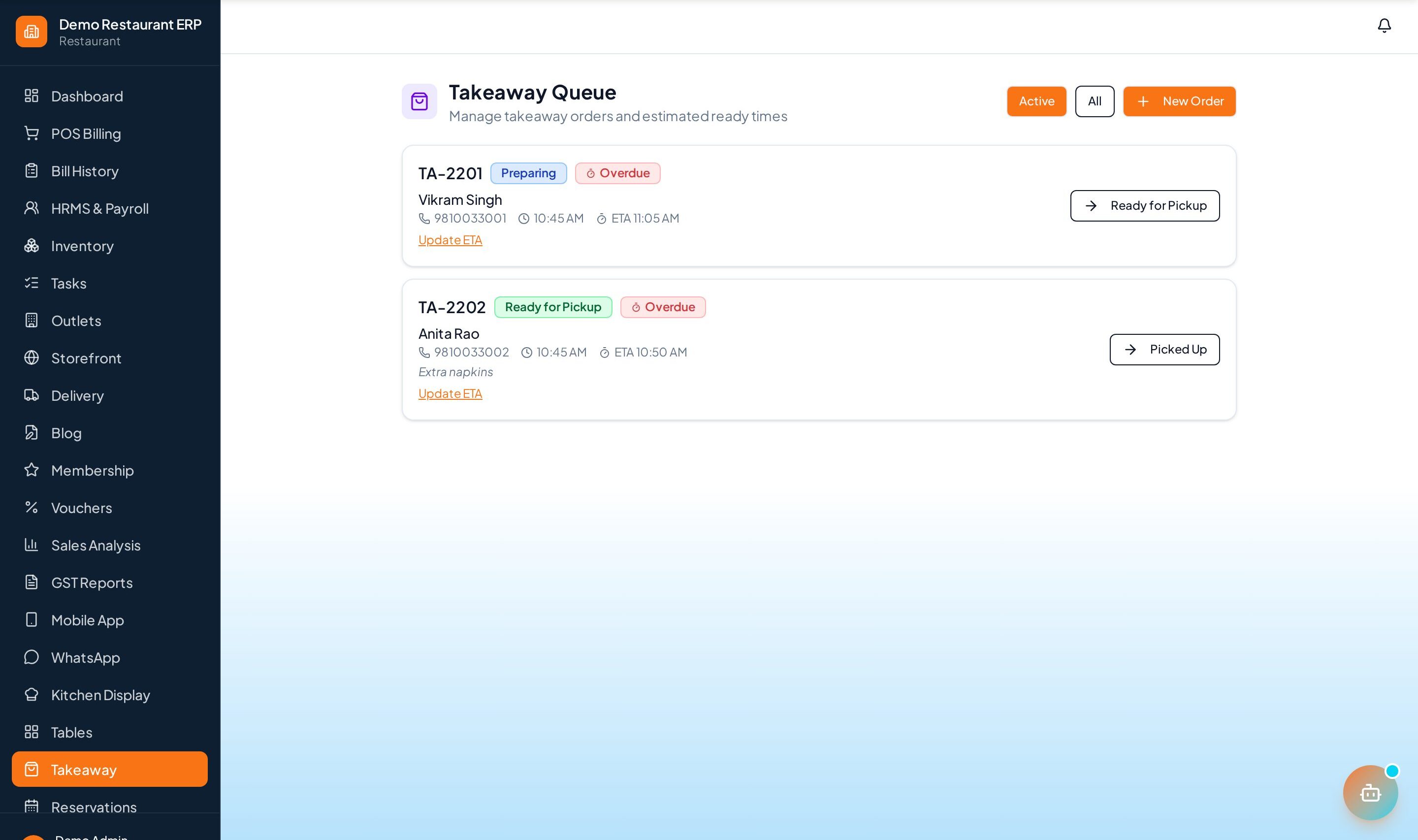
Open the Takeaway page from the sidebar to manage platform orders.
Step by step
- 1
Connect accounts
Link your Swiggy and Zomato partner accounts via the relay middleware setup.
- 2
Push menu
Update your menu once and prices sync out to both platforms.
- 3
Set availability
Mark an item out of stock once and it reflects everywhere.
- 4
Run one queue
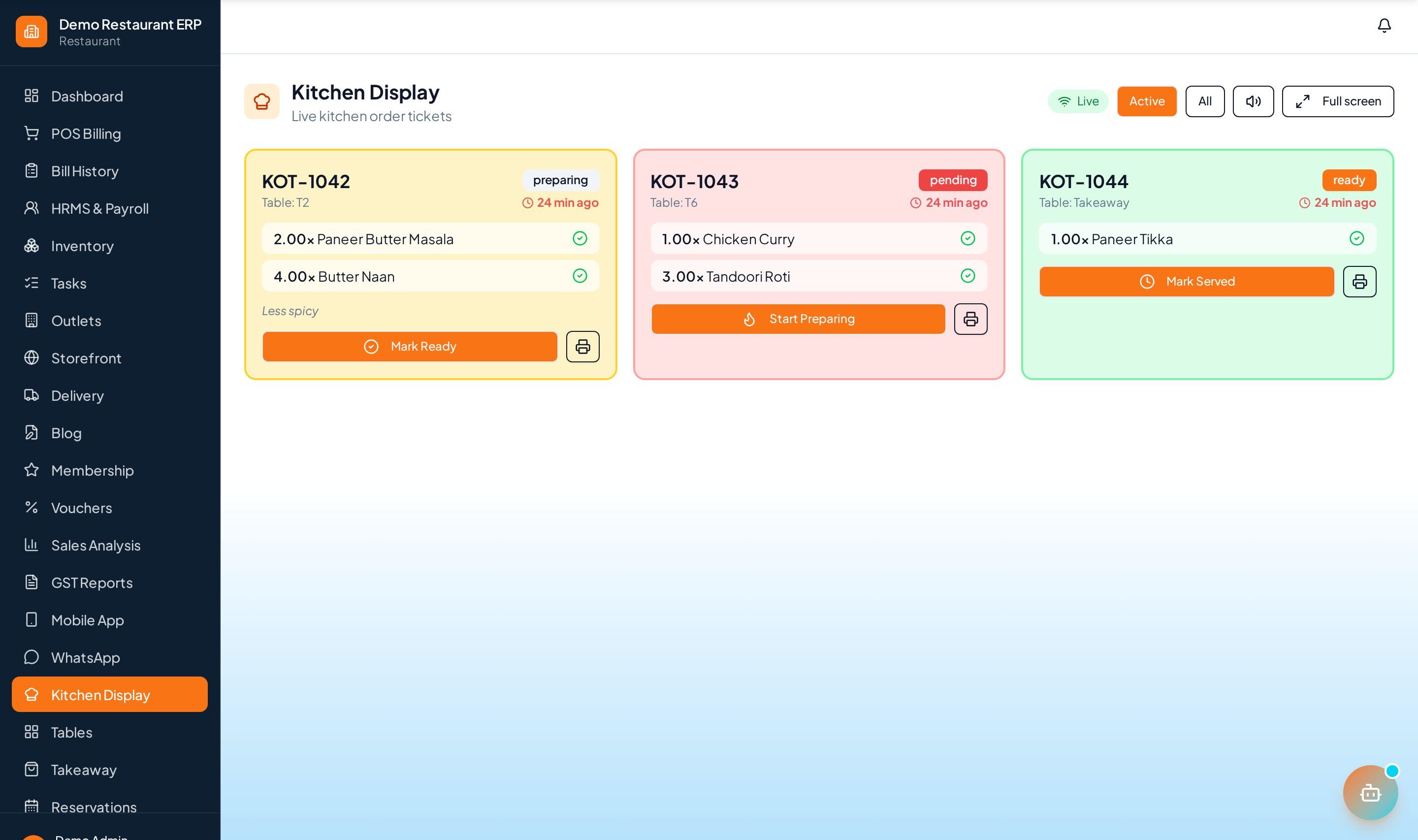
Platform orders land in your POS and kitchen flow like any other order.
See it in the app
Want the full feature list?
See everything Swiggy/Zomato Sync can do and what's included.
More Restaurant guides
KOT System
Kitchen Order Tickets route each dish to the right station the moment an order is placed — no paper, no missed items.
Table Management
A live floor map of every table — occupied, free, or reserved — with a running bill per table.
Dine-In & Takeaway
Handle dine-in, takeaway, and delivery from a single screen with the right flow for each order type.